Cricut Can't Read Registration Marks: How to Fix It
Cricut won’t read your registration marks? Most of the time it’s glare or a low-quality print — and starting from a clean, high-resolution sticker file helps. StickerReady gives you a crisp, properly-prepared sticker PNG so the print is sharp and easy for the sensor to read.
The other fixes are about your setup: use matte paper, bright even lighting, and keep laminate off the marks — the full checklist is below.
Get a clean sticker file ›The sensor needs clean contrast
Most reading failures are glare, bad light, or covered marks.
It is one of the most deflating Cricut errors: the printing worked, your sticker sheet looks great, and then the machine refuses to cut because it “cannot read the registration marks.” You are one step from finished and completely stuck.
What Registration Marks Do
Registration marks are the black lines and squares Design Space prints around your design. The Cricut has a small optical sensor that hunts for these marks so it knows exactly where the printed design sits — and therefore exactly where to cut. If the sensor cannot see the marks clearly, it cannot cut.
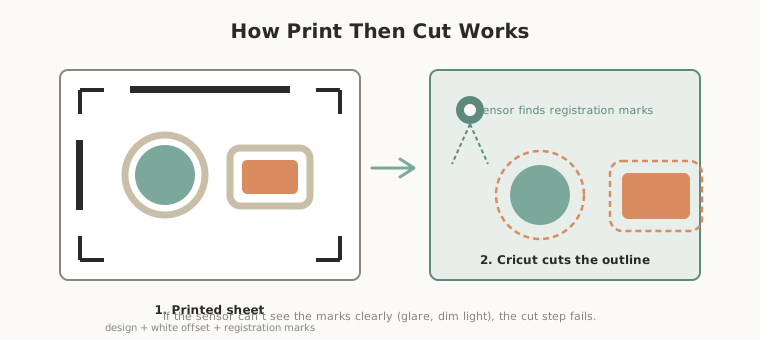
Why the Sensor Fails
- Glare. Glossy paper or a glossy laminate layer reflects light straight back at the sensor, washing out the marks.
- Dim or uneven lighting. Too little light, or harsh shadows across the sheet, leave the sensor unable to find the marks.
- Smudged or damaged marks. Ink smears, scratches, or printer streaks across the marks confuse the reading.
- Marks covered or cropped. Laminate placed over the marks, or a sheet loaded crooked so a mark sits off the mat, both cause failure.
- Wrong paper color. Very dark or heavily patterned paper gives the black marks too little contrast.
How to Fix It
- Improve the lighting. Move the machine somewhere with bright, even, indirect light. Avoid direct sun and harsh overhead spotlights that cause glare.
- Switch to matte paper. Matte sticker paper reflects far less light and is the single most effective fix.
- Keep laminate off the marks. If you laminate before cutting, cover only the stickers, never the corner registration marks.
- Check the marks are clean and complete. Reprint if they are smudged, streaked, or cut off at the edge.
- Load the sheet straight. Align the paper squarely on the mat so all marks sit within the readable area.
If laminate keeps causing glare failures, cut the stickers first and laminate afterward. You lose the cut-through-laminate convenience but completely remove the registration problem.
Reduce the Risk Upstream
A clean, properly-prepared sticker file with a clear border and good contrast gives the whole Print Then Cut process the best chance of success. StickerReady prepares sticker PNGs with the transparency and border structure that Print Then Cut expects.
Start with a clean sticker file
StickerReady prepares Print-Then-Cut-ready sticker PNGs in seconds.
Try StickerReady freeFrequently Asked Questions
Why does my Cricut print but not cut?
The print step and the cut step are separate. Printing succeeded, but the Cricut’s sensor then failed to read the registration marks needed to position the cut. The fix is making those marks easier for the sensor to see.
Does glossy sticker paper cause registration problems?
Often, yes. Glossy surfaces reflect light into the sensor and wash out the marks. Matte paper is much more reliable. If you want a glossy finish, consider a glossy laminate applied after cutting.